Using the dashboard
Task-oriented notes on the dashboard controls added in v1.4.102 to v1.4.106: choosing a model and thinking level, the cost table by thinking level, the team health monitor, the agent list's Display panel, the sectioned dialogs and image thumbnails. Screenshots are in the dark theme; the light theme and a phone show the same controls.
Choose a model and thinking level
At launch and restart. In New Agent and Restart, the Agent section has Model and Thinking. Thinking (reasoning effort) offers Low, Medium, High, Extra high and Max for Claude Code, narrowed to the levels the chosen model takes. Codex, Antigravity, Pi and plain terminals have no Thinking select today: only Claude's levels are passed to a CLI.
- Default passes nothing, so the CLI uses its own default.
- Restart opens on the level the agent was started with and keeps it unless you change it. Choose Default to clear it.
While the agent runs. Two chips beside the Send button name what the agent runs now: the model chip, for example Claude · Opus 5.5, and the thinking chip, for example High. They show the model and level of the newest turn, read from the CLI's transcript. Before the agent's first reply the thinking chip shows the level it was started with, in italics, as requested. There are no chips for a sleeping or archived agent or a terminal, and a CLI that reports no thinking level has only the model chip.
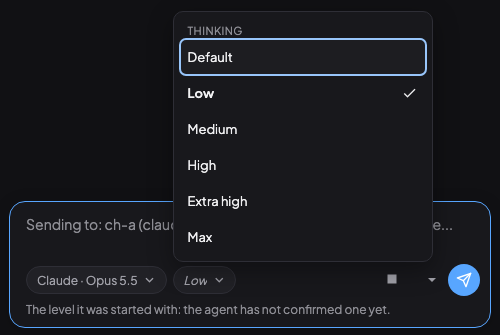
Click the model chip to pick a model, or the thinking chip to pick a level. The model menu lists the models the agent's CLI offers; the thinking menu lists only the levels that model takes.
The agent's header does not repeat the model (the chip and the agent row's tooltip carry it). It shows the git branch, cut short with an ellipsis when it is long (a worktree's branch can be 60 characters or more): hover it, move to it with Tab, or tap it and the whole name opens in place under the header, without moving any button. On a narrow header the branch is left out.
- Claude Code switches live. Coral types the CLI's own
/modeland/effortinto the agent's terminal once the agent is between turns. The chip you used saysSwitching to …until the transcript confirms it, and shows the CLI's message if it refused. You can keep typing the whole time. - Switches after this reply. You changed it while the agent was in the middle of a turn. Coral waits for the reply to end and never types into the middle of one.
- Apply with restart. Shown in the menu for a CLI with no live switch (Codex, Antigravity, Pi: only Claude is checked so far). Choosing an item opens the Restart dialog with your choice filled in; the dialog is the confirmation.
A second change while one is still pending is refused with a message. The API behind this is described in Sessions.
See cost by provider, model and thinking level
In Analytics, three tables break the cost down, each one inside the one before: By Provider (claude, codex, ...: the totals), By Model (a row per provider and model) and By Thinking Level (a row per provider, model and level). All three have Requests, Input, Output, Cache Read, Cache Write, Cost and Share (the row's share of the cost); in the thinking table Requests is Calls, because that breakdown counts calls, not sessions.
The By Thinking Level table has a row per provider, model and level.
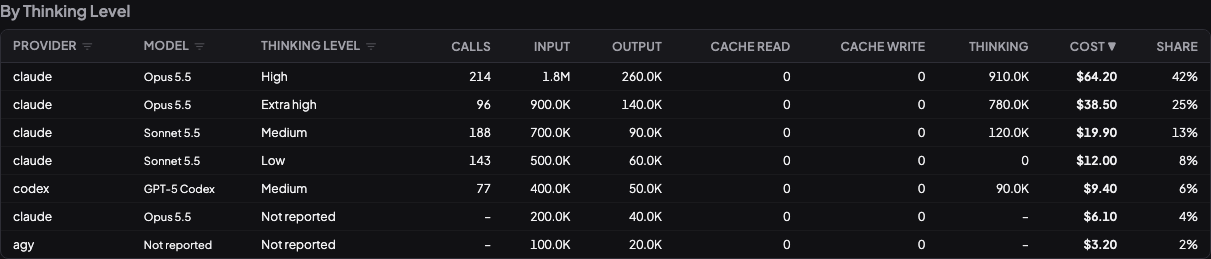
- Thinking is the number of tokens the CLI reported for thinking. It is shown apart and is not added to any total.
- Share is the row's share of the cost.
- Not reported (dimmed) in the Thinking level column is usage whose turn recorded no level: a CLI that writes none (Antigravity, Pi), turns that recorded none, and everything from before levels were tracked. Each model has its own: that model's total less what is tracked for it. It is never the level an agent was launched with. Not reported in the Model column is usage from before the model was kept with the levels, and calls that named none.
- Click a column heading to sort. Provider, Model and Thinking level also have a filter (the small icon beside the name). On a phone the tables scroll sideways inside their card, and Cost and Share come right after the columns that name the row: in By Thinking Level those are Model and Thinking level, and Provider follows Share.
The numbers come from by_agent_type, by_model and by_thinking in Token usage.
Turn on the team health monitor
A team's health check is off by default. When it is on, Coral checks in on the team every few minutes (10 by default, 5 to 1440 in settings) to spot stuck or idle agents, and types one summary into one person's terminal: the orchestrator unless you pick another team member. It says who is idle, stuck or waiting, and what changed. It uses tokens each time, because the recipient's agent reads and answers it.
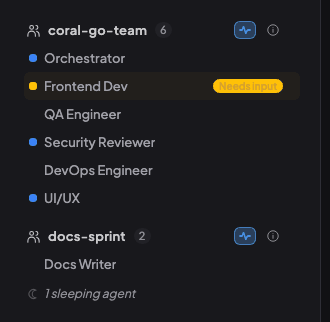
- The icon sits beside the team's info button in the agent list: a plain, dimmed outline while the check is off, an accent icon on a tinted pill while it is on. It is named "Team health monitor: off" or "on". Click it to open the team's settings on the Health check tab. There is no icon where the list carries no state (Coral Hub).
- Turn it on in the Health check tab (Send a health check to this team), or tick Team health monitor in the Agent Team dialog when you launch the team (unticked by default).
- Also in that tab: how often, who receives it, whether to post a short line when nothing needs attention, and each automatic rule (nudge an idle agent to claim its work, ask a quiet agent for a status, report a held delivery). Those rules act only while the check is on. Handing a review to the default reviewers works whether or not it is on.
A separate switch, Allow team health checks (all teams) in Settings > Agents, is on by default and is read when Coral starts: turning it off stops the background monitor for every team, and each team's Health check tab then says it needs that switch, with a link to Settings. See Teams.
Filter and sort the agent list
The ☰ Display button under the search box opens a panel in place (not a pop-up).
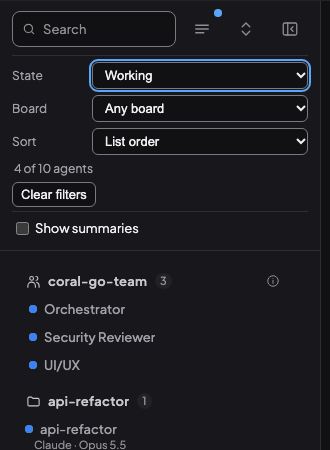
- State (Needs input, Working, Idle, Asleep), Board, Machine (when other machines are connected) and Sort (List order, Name, Recent activity, Cost), then the count ("4 of 10 agents") and Clear filters.
- Show summaries; with other machines connected, Show server and Group by server too.
- A summary line under the search says what is on, for example
State: Working (4 of 10 agents), with Clear, and a dot on the button marks that something is on. - Escape closes the panel and returns to its button. Whether it is open is remembered in this browser. On a phone the same panel is in the Agents page header.
Sectioned dialogs
Restart, New Agent, Agent Team and a team's agent dialog share one layout: a list of sections on the left (a selector at the top on a phone or at large text), one section at a time on the right, and a footer with the buttons that is always in view.
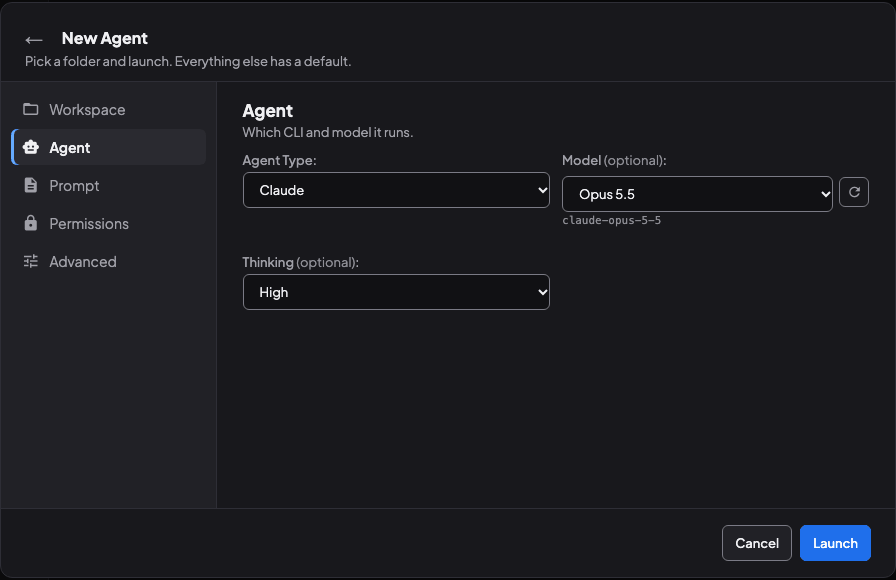
- Restart: Agent, Prompt, Permissions, Advanced. New Agent: Workspace, Agent, Prompt, Permissions, Advanced. Agent Team: Members, Board & workspace, Defaults. A team's agent dialog adds a Role section.
- Moving between sections keeps what you typed. The arrow keys, Home and End move through the list and open the section; Tab goes from the list into the open section. A section holding a field with a problem is marked in the list.
Pasted images show a thumbnail
When you paste or attach an image in the message box and send it, its chip in the chat shows a small thumbnail (48 px) next to the file name. Click it to open the image in the Preview pane.
- It is shown for images Coral stored in its uploads folder on the agent's computer, and for images pasted into a Claude or Codex conversation, which Coral reads from the agent's own transcript (PNG, JPEG, GIF and WebP). A file the agent only names stays a plain name.
- Location and camera data are removed. A JPEG, PNG or GIF is saved without its GPS position, camera and phone details, thumbnails and comments, and is not re-encoded; a JPEG keeps only its rotation, so a portrait photo is not on its side. HEIC is not converted or stripped: Coral does not accept a file named
.heic, and HEIC data under another name is kept for the agent exactly as it is. Export a HEIC as JPEG or PNG first. A WebP or TIFF is also kept for the agent as it is; it is shared in the chat only when it carries no such data. - Local only: never through Coral Hub, where the chip keeps its name. An agent reads only its own session's and its board's chat images (what an agent can read).